
Foenix Sandbox Test: Before I connected VentureLab360 to Foenix, I wanted to know exactly how the platform behaved in a safe environment.
Connecting an AI assistant to your WordPress website is a big step. Depending on its permissions, it could recommend SEO changes, update content, generate images, or even make edits across your site. Before I gave Foenix access to VentureLab360, I wanted to answer one simple question:
Could I trust it?
Instead of connecting it directly to my live website, I started in Foenix’s built-in sandbox. This isolated WordPress environment let me explore its features, test how it handled real tasks, and see how it explained its recommendations—all without risking my production site.
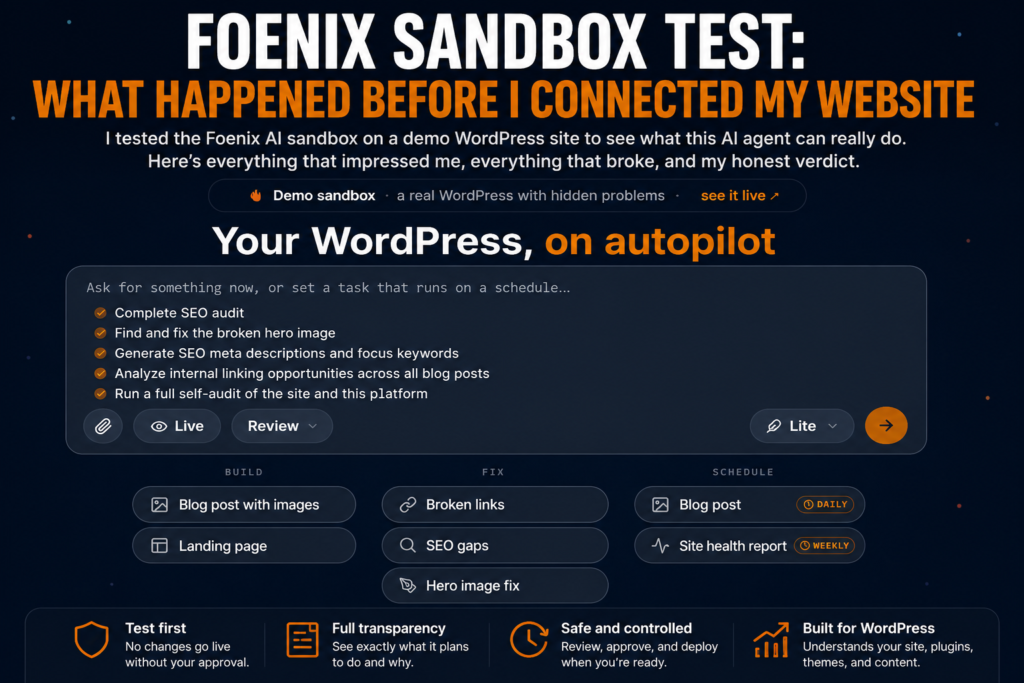
Over the course of several tests, I asked Foenix to perform an SEO audit, generate metadata, diagnose a broken hero image, suggest internal links, and even evaluate its own capabilities. Some results genuinely impressed me. Others showed that the platform is still evolving.
Before connecting VentureLab360, I wanted to understand exactly how Foenix behaved. Like other AI assistants for WordPress, it promised to automate tasks that normally require hours of manual work.
This article documents exactly what happened during those tests. Rather than reviewing marketing claims, I’m sharing what I observed, what worked well, what didn’t, and why I believe every new Foenix user should spend time in the sandbox before connecting a live WordPress website.
Before connecting any AI tool to a live website, it’s worth understanding WordPress best practices for testing and managing changes.
Want to Test Foenix Yourself?
Everything in this article comes from my own hands-on testing inside the Foenix sandbox. If you’d rather see how it behaves on a demo WordPress site before connecting your own website, that’s exactly what I recommend.
👉 Try the Foenix Sandbox here and see how it handles SEO audits, content improvements, and WordPress troubleshooting before giving it access to your live site.
Key Takeaways
- I deliberately tested Foenix in its sandbox before connecting it to VentureLab360 to understand how it worked without risking my live website.
- Review Mode was one of the standout features, allowing me to see proposed changes before anything could be applied.
- Foenix impressed me with its ability to diagnose WordPress issues, explain its reasoning, and work through problems instead of simply generating content.
- Not every test was perfect. An API error during internal linking showed that the platform is still evolving, and documenting those shortcomings is just as important as highlighting its strengths.
- The sandbox gave me confidence to explore Foenix’s capabilities while keeping my production site completely isolated.
- If you’re considering Foenix, I believe spending time in the sandbox first is the safest and smartest way to learn how the platform works before giving it access to a live WordPress website.
Disclosure: Some links in this article may be affiliate links. If you purchase a product through these links, VentureLab360 may earn a commission at no additional cost to you. We only recommend tools and services we believe can provide value to our readers.
Why I Tested Foenix in the Sandbox First
When I first signed up for Foenix, I had a choice. I could connect it directly to VentureLab360 and let it start analyzing my website, or I could spend some time learning how it worked in the built-in sandbox first.
I chose the sandbox.
Any AI assistant that can potentially recommend SEO changes, modify content, or interact with a WordPress site deserves a careful evaluation before being trusted with a live website. The sandbox gave me a safe place to explore Foenix’s capabilities without worrying about accidentally changing anything on VentureLab360.
Rather than trying to see how quickly I could start using the platform, I wanted to understand how it thought, how it explained its recommendations, and how it handled real WordPress tasks.
Why I Didn’t Connect VentureLab360 Immediately
VentureLab360 is no longer just a personal project. It’s an active website with growing search traffic, affiliate links, and nearly 100 published articles. One incorrect change could affect rankings, user experience, or content I’ve spent months building.
Instead of taking that risk, I wanted Foenix to earn my confidence first.
The sandbox gave me the opportunity to test how it approached SEO audits, metadata generation, WordPress troubleshooting, and other everyday website tasks before giving it access to a production site. I also wanted to see whether it would explain its recommendations instead of simply telling me what to do.
That extra layer of caution turned out to be one of the best decisions I made during this evaluation.
What I Wanted to Learn Before Trusting an AI Agent
My goal wasn’t to see whether Foenix could write content. Plenty of AI tools can already do that.
What interested me was whether it actually understood WordPress.
Could it recognize the difference between a content issue and a technical problem? Would it diagnose a broken image instead of simply replacing it? Could it explain why it was making a recommendation? And just as importantly, would it be honest when something didn’t work?
Those were the questions I wanted answered before allowing an AI assistant anywhere near my live website.
What I Was Looking For
| Trust Signal | What I Wanted to See | Why It Matters |
|---|---|---|
| Review Before Action | Proposed changes before making edits | Lets you stay in control of your website. |
| Clear Explanations | Reasoning behind recommendations | Helps you understand why a change is being suggested. |
| WordPress Knowledge | Accurate understanding of posts, pages, media, themes, and plugins | Shows the AI understands how WordPress actually works. |
| Transparency | Honest reporting of successes and failures | Builds confidence that you can trust its recommendations. |
| Error Handling | Clear messages when something goes wrong | Makes troubleshooting much easier. |
| Consistency | Similar tasks handled the same way each time | Creates predictable workflows you can rely on. |
What Is the Foenix Sandbox?
Before connecting Foenix to your own WordPress website, you’re given access to a fully functional sandbox environment. Instead of experimenting on a live site, you can explore the platform, run tests, and learn how its AI assistant works without worrying about affecting your own content.
That’s exactly how I approached it.
Rather than immediately connecting VentureLab360, I spent time inside the sandbox to see how Foenix analyzed websites, responded to prompts, and explained its recommendations. It gave me an opportunity to evaluate the platform before trusting it with a site that receives real search traffic and contains months of work.
A Safe WordPress Testing Environment
The sandbox isn’t just a product tour—it’s a working demonstration of how Foenix approaches common WordPress tasks.
During my testing, I asked it to perform a complete SEO audit, generate metadata, diagnose a broken hero image, suggest internal links, and answer questions about its own capabilities. Because everything happened inside the sandbox, I could freely experiment without worrying about damaging my own website.
That freedom made it much easier to evaluate not only the quality of Foenix’s recommendations, but also how it explained its reasoning and responded when something didn’t go as planned.
| What I Tested | What I Learned | Why It Matters |
|---|---|---|
| SEO Audit | How Foenix analyzes a WordPress website and prioritizes issues | Shows how useful its recommendations are before trusting them on a live site. |
| Metadata Generation | Whether titles, meta descriptions, and keywords were relevant | Helps determine if its SEO suggestions are practical. |
| Hero Image Repair | How it diagnosed and explained a real website problem | Demonstrates problem-solving instead of simple content generation. |
| Internal Linking | How it builds contextual links—and how it handles errors | Revealed both strengths and current limitations of the platform. |
| Self-Evaluation | How accurately it assessed its own abilities | Provided insight into its reasoning and transparency. |
Why Every New User Should Start Here
After spending time with the sandbox, I wouldn’t recommend skipping it.
It’s the fastest way to understand how Foenix thinks, how it approaches WordPress tasks, and how much you can trust its recommendations before giving it access to your own website.
In my case, the sandbox revealed several impressive capabilities that I might not have discovered otherwise. It also exposed a few limitations—including an API error during one of my tests—that I was glad to encounter in a safe environment instead of on VentureLab360.
If you’re considering Foenix, my advice is simple: spend some time in the sandbox first. You’ll learn far more about the platform than you would by reading feature lists or watching a product demo, and you’ll have a much better understanding of what to expect when you eventually connect your own site.
First Impressions: Logging Into Foenix
The first thing I noticed after logging into Foenix was that it didn’t feel like a typical AI chatbot. Instead of presenting a blank prompt and waiting for instructions, the interface immediately focused on managing a WordPress website.
Navigation was straightforward, and it was easy to understand where everything lived. Within a few minutes, I was exploring the dashboard, switching between different tools, and getting a feel for how Foenix approaches website management. Rather than trying to overwhelm new users with dozens of features, the interface encouraged exploration one step at a time.
For a first impression, it felt polished and approachable.
The Dashboard
The dashboard quickly became the hub for everything I tested in the sandbox. From there, I could access website reviews, start conversations with the AI assistant, switch between different tools, and monitor what Foenix was doing throughout each task.
One thing I appreciated was that the interface stayed organized. Whether I was running an SEO audit or asking Foenix to troubleshoot a problem, the workflow remained consistent instead of feeling like a collection of unrelated features.
| Dashboard Area | What I Used It For | My Impression |
|---|---|---|
| AI Chat | Asked questions and assigned tasks | Natural conversational experience that felt more like working with an assistant than a chatbot. |
| Review Mode | Tested recommendations before making changes | One of the platform’s strongest features and something every new user should explore first. |
| Website Reviews | Evaluated SEO, content, and technical issues | Organized findings into a format that was easy to follow. |
| Navigation | Moved between features during testing | Clean layout that made it easy to find the next task without hunting through menus. |
Review Mode vs Live Mode
One feature stood out almost immediately: Review Mode.
Instead of immediately making changes, Foenix first presents its recommendations for you to review. That extra step gives you the opportunity to understand what it’s suggesting before anything is applied.
Throughout my testing, I stayed almost entirely in Review Mode. It allowed me to evaluate how Foenix approached SEO, content, troubleshooting, and WordPress management without worrying about unintended changes. That made the sandbox feel less like a demonstration and more like a safe environment to learn how the platform thinks.
Although I haven’t yet tested Live Mode on VentureLab360, Review Mode gave me confidence that Foenix is designed to keep the user involved in the decision-making process rather than automatically changing a website behind the scenes.
Complete Website SEO Audit
The first real test I gave Foenix was a complete SEO audit of the sandbox website.
This was the feature I was most interested in because it’s one of the quickest ways for an AI assistant to prove its value. A good SEO audit should do more than point out obvious issues—it should explain why something matters, prioritize what should be fixed first, and provide recommendations that make sense for a real WordPress website.
Many of the recommendations Foenix surfaced are also covered in Google’s own documentation on technical SEO and website crawling.
The audit also reinforced several of the same principles I discussed in my guide on how to optimize your website for ChatGPT Search, particularly around technical SEO, metadata, and site structure.
Rather than accepting everything at face value, I compared Foenix’s findings with what I could actually verify on the website. If it identified a problem, I wanted to know whether the issue truly existed and whether the recommended solution made sense.
The Prompt I Used
I kept the request intentionally simple.
Instead of asking dozens of separate questions, I simply instructed Foenix to perform a complete SEO audit of the sandbox website and identify opportunities for improvement. From there, I let the AI decide what it considered most important.
That approach gave me a much better idea of how someone would realistically use the platform.
What Foenix Found
The audit covered far more than just keywords and metadata.
Foenix reviewed technical SEO, page structure, content quality, user experience, internal linking, and several other areas of the website. Rather than producing a generic SEO checklist, it organized its findings into clear recommendations with explanations for why each issue mattered.
| Area Reviewed | What Foenix Evaluated | My Impression |
|---|---|---|
| Technical SEO | Indexing, metadata, site structure, and crawlability | Comprehensive without feeling overwhelming. |
| On-Page SEO | Titles, headings, images, and page organization | Most recommendations were logical and easy to understand. |
| Content | Quality, missing information, and opportunities to improve pages | Often provided useful suggestions instead of generic advice. |
| Internal Linking | Connections between pages and navigation | Identified opportunities, although this became more interesting during the dedicated internal linking test later. |
Where It Was Right
Several of Foenix’s observations immediately stood out because they weren’t surface-level recommendations.
Instead of simply listing SEO best practices, it explained why certain issues mattered and connected them to the overall health of the website. Throughout the audit, I found myself agreeing with many of its conclusions because the reasoning was clear and easy to follow.
One thing I especially appreciated was that Foenix didn’t just identify potential improvements—it explained them. That made the recommendations much easier to evaluate instead of expecting me to blindly trust the AI.
Where It Was Wrong
The audit wasn’t perfect.
A few recommendations either lacked enough supporting evidence or required additional verification before I would consider acting on them. Rather than accepting every suggestion automatically, I compared the findings against the actual website to determine whether the issues were real.
That process reinforced one of the biggest lessons from this entire sandbox experience: AI recommendations should always be reviewed before they’re implemented.
Overall, the SEO audit gave me confidence that Foenix has a strong understanding of website optimization, but it also confirmed that human oversight remains an important part of the process.
Meta Descriptions and Focus Keywords
After the audit, I asked Foenix to prepare the highest-priority fixes in Review Mode. It selected three tasks: verify the XML sitemap, write missing meta descriptions, and assign focus keywords to the blog posts.
Google explains that while meta descriptions aren’t a direct ranking factor, they can influence how your page appears in search results.
The first attempt failed with an internal API error. After I asked Foenix to try again, it recovered, rechecked the website, and prepared the proposed changes without publishing anything.
This became one of the most useful tests because it showed how Foenix moves from identifying a problem to preparing an actual WordPress update.
Testing Review Mode
Foenix generated metadata proposals and displayed the existing and suggested values for review. Nothing was automatically applied to the sandbox website.
That distinction matters. Instead of simply saying that pages needed better metadata, Foenix prepared the changes inside the relevant WordPress and Yoast fields and waited for approval.
The workflow was clear:
- Foenix reviewed the website.
- It selected the changes it considered most important.
- It checked the existing WordPress configuration.
- It generated proposed meta descriptions and focus keywords.
- It displayed the changes for review.
- It confirmed that nothing had been published.
- It waited for me to approve or reject the work.
This was one of the strongest demonstrations of Review Mode during my testing. Foenix was capable of preparing real changes, but I remained in control of whether they would ever reach the website.
Generated Metadata Quality
Foenix found that several important pages and six of the eleven blog posts did not have custom meta descriptions. Without one, Google may create its own search snippet from text found on the page, which can produce an unpredictable or unattractive result.
The proposed descriptions were concise, relevant to each page, and written naturally. Most looked usable with little or no editing.
Foenix also noticed that the automatically generated Open Graph description for at least one page was pulling an awkward block of page text instead of a deliberately written summary. That was a useful observation because it connected missing metadata with how the website might appear when shared on social media, not only in Google search results.
| Quality Check | What I Observed | My Assessment |
|---|---|---|
| Relevance | The descriptions reflected the subject of each page or article | Strong |
| Readability | The wording sounded natural rather than stuffed with keywords | Strong |
| Uniqueness | Each description was written around the individual page | Strong |
| Practical usability | Most appeared ready to use with minimal editing | Very good |
| Human oversight | Every description still needed to be reviewed before publishing | Necessary |
The focus keyword suggestions were more mixed.
Foenix proposed relevant terms for eleven posts, including phrases such as:
- latte art
- coffee water temperature
- espresso crema
- Ethiopian Yirgacheffe coffee
- best coffee beans for espresso
- coffee cupping at home
- pour over vs. French press
- how to store coffee beans
The suggestions generally matched the topics of the articles. However, I saw no evidence that Foenix had checked search volume, competition, keyword difficulty, click potential, or the wording people actually use in search results.
That is an important distinction. A keyword can accurately describe an article without being the best SEO target for it.
Foenix also treated missing Yoast focus keywords as a more serious issue than I believe they are. Entering a focus keyword into Yoast does not directly improve rankings. It primarily gives Yoast a phrase to use when evaluating the page.
For that reason, I would use Foenix’s focus keyword suggestions as a starting point, not as a replacement for normal keyword research.
The Sitemap Surprise
The most unexpected part of this test involved the XML sitemap.
During its original audit, Foenix reported that Yoast SEO was installed but that the site’s XML sitemap appeared to be missing or inaccessible. It classified this as a critical issue and selected it as one of the first three problems to fix.
That finding turned out to be wrong.
When Foenix retried the implementation task, it checked the Yoast configuration again and discovered that the XML sitemap was already enabled. It then tested the sitemap from the front end and confirmed that a working sitemap index was being served at:
/sitemap_index.xml
Rather than continuing with an unnecessary change, Foenix acknowledged that the original audit finding was incorrect and removed the sitemap from its implementation plan.
The false finding lowered my confidence in the audit’s accuracy, but the correction improved my confidence in Foenix’s process.
It did not blindly act on its earlier conclusion. It rechecked the underlying setting, tested the live output, admitted the mistake, and changed its plan. That ability to verify and correct its own work was one of the most impressive moments in the sandbox.
If you’re unfamiliar with XML sitemaps, Google provides an excellent overview of how they help search engines discover and crawl website content.
What I Learned
This test showed both the strength and the limits of Foenix’s SEO workflow.
Its meta descriptions were one of the strongest outputs I saw. They were relevant, readable, and likely usable after a quick human review. Its focus keyword recommendations were also relevant, but they lacked the search data needed to determine whether they were truly the best targets.
More importantly, Review Mode gave me a clear way to inspect every proposed change before anything was published. Even when Foenix’s original sitemap conclusion was wrong, the system rechecked its work and stopped itself from making an unnecessary change.
My takeaway is straightforward: Foenix can prepare useful SEO updates, but it should not replace human judgment or proper keyword research. Its greatest value is not blindly automating SEO. It is investigating the website, preparing specific changes, explaining what it found, and allowing the user to make the final decision.
Repairing the Broken Hero Image
The broken homepage hero image became the most impressive test I ran in the Foenix sandbox.
The Aurora Coffee homepage clearly had a problem: the main image at the top of the page was not loading. I could have simply asked Foenix to replace it, but I wanted to see whether it could determine exactly why the image was broken before proposing a fix.
WordPress stores uploaded media as attachment records in the Media Library, which is why missing attachments can break images even when the page itself is still intact.
That distinction mattered. Replacing an image is easy. Diagnosing the underlying WordPress problem is what would show whether Foenix was acting like a true website assistant rather than a basic image generator.

Finding the Real Problem
Foenix did not immediately create a new image and assume the job was finished.
It first inspected the homepage, analyzed a screenshot, retrieved the HTML from the WordPress cover block, located the image URL, and checked whether that URL loaded correctly. It then queried both the homepage content and the WordPress Media Library to verify the image attachment referenced by the page.
The investigation revealed several connected problems:
- The homepage cover block pointed to an image URL that returned a 404 error.
- The image file did not exist on the server.
- The page referenced attachment ID 5, but that attachment did not exist in the WordPress database.
- There was no corresponding attachment metadata.
- The homepage had effectively been configured to use an image that had never been properly uploaded to the Media Library.
That was a much deeper diagnosis than simply saying, “The hero image is broken.”
How Foenix Diagnosed the Issue
One of the strongest parts of this test was being able to watch Foenix investigate the problem step by step.
It displayed the actual HTML from the WordPress cover block, including the image URL, attachment ID, image class, source, alt text, and block configuration. This gave me direct evidence that it was examining the real website content rather than guessing based only on the way the page looked.
| Investigation Step | What Foenix Verified | Why It Mattered |
|---|---|---|
| Visual inspection | Confirmed that the homepage image was not displaying | Established that the problem existed on the front end |
| Image URL check | Found that the referenced file returned a 404 | Confirmed the image source itself was broken |
| Media Library query | Checked whether the referenced attachment existed | Showed that this was not merely a display or caching issue |
| Database verification | Confirmed that attachment ID 5 and its metadata were missing | Identified the actual WordPress configuration problem |
| Cover block inspection | Located the exact broken reference in the page HTML | Allowed Foenix to propose a narrowly targeted repair |
The diagnosis showed that Foenix understood the relationship between a WordPress page, its block markup, the Media Library, and the database record behind an attachment. That was the first point in my testing where the platform truly felt like an AI WordPress operator.
The Replacement Image
After identifying the root cause, Foenix generated a new hero image for the Aurora Coffee homepage.
The image featured a professional coffee roaster working in a warm, amber-lit roasting environment. It used a wide 16:9 composition suited to a WordPress cover block, and the darker areas of the background gave the existing white headline and button enough contrast to remain readable.
The generated image was surprisingly strong. I rated it 9 out of 10.
Its biggest strengths were:
- Professional composition
- Warm lighting that matched the coffee brand
- A clear focal point
- Colors that fit the existing website
- Enough open and dark space for overlaid text
- A layout suitable for a wide homepage hero section
It still had some subtle signs of being AI-generated, and it was more representative of a coffee business than uniquely branded for Aurora Coffee. For a real business, original photography would eventually be preferable. But as a replacement for the broken sandbox image, it was entirely appropriate.
Foenix then proposed a very limited WordPress update. It would:
- Upload the new image as a proper Media Library attachment.
- Replace the broken image URL.
- Update the attachment ID,
data-object-id, and image class in the homepage cover block. - Preserve the existing alt text.
- Leave the rest of the homepage untouched.
It explicitly stated that it would not change the heading, button, overlay darkness, page layout, CSS, template, or theme files.
Nothing was published because I remained in Review Mode.
Why This Was the Most Impressive Test
This test showed more than Foenix’s ability to generate a good image.
It showed that the platform could inspect a visible problem, trace it through the WordPress page structure, verify that the attachment and file were missing, explain the exact cause, generate a suitable replacement, and prepare a tightly scoped repair.
Most importantly, it did not propose rebuilding the hero section or changing unrelated parts of the homepage. It isolated the problem and planned to modify only what was necessary.
That combination of technical diagnosis, image generation, scope control, and transparency made this the strongest test of the entire sandbox experience. It was the moment Foenix felt least like a chatbot and most like an AI assistant capable of investigating and managing a WordPress website.
Impressed by What Foenix Can Do?
The broken hero image test completely changed my opinion of Foenix.
Instead of simply replacing the image, it investigated the page, traced the missing attachment through WordPress, diagnosed the real problem, generated a replacement image, and prepared the fix without touching the live website.
If you’re curious how it performs on your own site, the sandbox is the best place to start.
👉 Launch the Foenix Sandbox and try it on a demo WordPress website first.
Internal Linking
After seeing how Foenix handled SEO recommendations and the broken hero image, I wanted to test something much more complex: internal linking.
Unlike generating metadata or replacing a single image, internal linking requires understanding the relationship between dozens—or even hundreds—of pages. It has to recognize topical authority, identify relevant content, and recommend links that make sense for both readers and search engines.
This was a good opportunity to see how Foenix handled a task that affects an entire website instead of a single page.
The Prompt
I asked Foenix to analyze the website and recommend internal links between related pages.
Rather than simply adding links wherever keywords matched, I wanted it to understand topical relationships and recommend links that would improve navigation and strengthen the site’s overall content structure.
The request was intentionally straightforward because that’s how most website owners would use the feature. I wanted to evaluate the results, not the prompt itself.
The API Error
This was the first test that didn’t go as planned.
Instead of generating internal linking recommendations, Foenix encountered an internal API error and stopped processing the request. Rather than continuing with incomplete information or pretending everything had worked, it clearly reported that the task had failed and explained that the request could not be completed.
Although it couldn’t finish the job, I appreciated that it failed transparently. There were no partial edits, no hidden changes, and no attempt to disguise the problem as a successful result.
That honesty is far preferable to an AI making changes it isn’t confident about.
What the Failure Taught Me
Ironically, the failed test still told me something important about Foenix.
No AI platform is perfect, and internal linking is one of the more demanding tasks an AI assistant can perform. It requires analyzing large amounts of content, understanding topical relationships, and coordinating changes across multiple pages.
The important part wasn’t that an error occurred—it was how Foenix handled it.
Instead of silently failing or generating questionable recommendations, it stopped the process, reported the error, and left the website unchanged. Since I was working in the sandbox, the failure carried no risk, which reinforced why I recommend testing new AI tools in a safe environment before connecting them to a live website.
While I wasn’t able to evaluate Foenix’s internal linking capabilities during this session, I left the test with confidence that the platform favors transparency over pretending everything worked. That’s a characteristic I’d much rather see in an AI assistant than one that hides its mistakes.
Asking Foenix to Evaluate Itself
For my final major test, I asked Foenix to evaluate its own performance.
I wanted more than a promotional answer. I asked it to identify its strongest capabilities, admit where it was still limited, and explain what would need to improve before it could be trusted with a live WordPress website.
This was an unusual test, but it turned out to be one of the most revealing. Foenix’s self-assessment closely matched what I had already observed throughout the sandbox.
Its Biggest Strengths
Foenix identified WordPress troubleshooting, SEO analysis, and transparent reasoning as some of its strongest capabilities.
Based on my testing, that assessment was fair.
Its ability to investigate the broken hero image was the clearest example. It did not stop after noticing that the image failed to load. It traced the problem through the page markup, image URL, Media Library, and missing attachment record before proposing a narrowly targeted repair.
Foenix also demonstrated a strong ability to explain what it was doing. During the SEO audit and metadata test, it showed its reasoning, identified the information it was checking, and separated proposed actions from actual changes.
The strengths it identified included:
- Investigating WordPress problems step by step
- Connecting visible issues to their technical causes
- Preparing SEO and content recommendations
- Explaining the reasoning behind proposed changes
- Keeping changes limited in Review Mode
- Rechecking earlier conclusions when new information became available
The sitemap correction was especially important. Foenix initially reported that the sitemap was missing, but later verified that it was working and removed the unnecessary fix from its plan. That willingness to challenge its own earlier conclusion supported its claim that it could investigate rather than simply repeat its first answer.
Its Biggest Weaknesses
Foenix was also surprisingly open about its limitations.
It acknowledged that reliability was still an area that needed improvement, especially when tasks depended on internal APIs or involved larger amounts of website content. That weakness had already appeared during my internal linking test, when the task ended with an API error instead of producing recommendations.
It also recognized that unusual WordPress setups could be difficult to interpret. Custom themes, page builders, plugin conflicts, and heavily modified websites may require more context than the AI can gather automatically.
Another limitation involved SEO judgment. Foenix could identify missing metadata and suggest relevant focus keywords, but it did not appear to use search-volume data, keyword difficulty, competitor analysis, or live search-result research. That means its recommendations still require human evaluation before they become part of an SEO strategy.
| Area | What Foenix Did Well | Where It Acknowledged Limits |
|---|---|---|
| WordPress troubleshooting | Traced visible problems to page, media, and database issues | Custom themes and unusual plugin configurations may be harder to interpret |
| SEO analysis | Identified missing metadata and page-level opportunities | Recommendations may lack search-volume and competitor data |
| Review Mode | Kept proposed changes separate from published edits | Live performance still needed to be tested |
| Transparency | Explained its reasoning and corrected the sitemap mistake | Error reporting and reliability were not always consistent |
| Large-scale tasks | Showed awareness of sitewide structure | The internal linking API failure prevented a complete evaluation |
Foenix did not pretend those weaknesses were insignificant. It described reliability, error handling, and larger-scale execution as areas where further development was needed.
Did I Agree?
For the most part, yes.
Foenix’s description of its strengths matched the strongest moments from my testing. It was most impressive when investigating a specific WordPress problem, explaining what it found, and preparing a limited change for review.
Its description of its weaknesses also matched what happened in the sandbox. The API errors were real. The sitemap finding showed that its initial conclusions can be wrong. Its focus keyword suggestions were relevant but did not replace proper keyword research.
That alignment made the self-evaluation more credible than I expected.
Foenix did not describe itself as flawless or ready to control every part of a large WordPress website without supervision. Its assessment was closer to what I had experienced: a capable and unusually transparent AI website assistant that can perform impressive investigations, but still needs human oversight and stronger reliability before being trusted with unrestricted live access.
The test did not prove that Foenix always understands its limitations. It did show that, in this case, its self-assessment was remarkably consistent with the evidence from the sandbox.
The Biggest Surprises
By the time I finished testing Foenix in the sandbox, a few things stood out much more than I expected.
The biggest surprise was not a single feature. It was the way Foenix combined WordPress knowledge, step-by-step reasoning, and business-focused recommendations inside one workflow.
I expected it to behave like an AI chatbot with access to WordPress. Instead, it often felt more like a website operator that could investigate a problem, explain what it found, and prepare a specific change for approval.

Review Mode
Review Mode was one of the strongest parts of the entire sandbox experience.
Throughout my testing, Foenix could investigate issues and prepare changes without publishing them. I remained in control of whether anything would actually be applied.
That mattered during the metadata and hero-image tests. Foenix did not simply describe what should be changed. It prepared the actual updates, showed me what it intended to modify, and waited for approval.
Review Mode also gave me the freedom to test more aggressively. I could ask Foenix to investigate problems and generate solutions without worrying that an incorrect recommendation would immediately affect the website.
The extra approval step may slow down very simple tasks, but I would rather spend another minute reviewing a proposed change than allow an AI assistant to make unchecked edits to a live website.
Transparency
Foenix’s transparency surprised me almost as much as its technical ability.
It frequently showed what it was checking, what it found, and why it reached a particular conclusion. During the broken hero-image investigation, I could follow the process from the visible problem to the broken file URL, missing Media Library attachment, and incorrect cover-block reference.
That made its recommendations easier to trust because I was not being asked to accept a conclusion without evidence.
Its transparency was also valuable when things went wrong. Foenix reported the internal linking API failure instead of pretending the task had succeeded. It also admitted that its original sitemap finding was incorrect after verifying the site a second time.
Those moments made the platform feel more credible, not less. An AI assistant that clearly reports uncertainty and mistakes is far more useful than one that presents every answer with false confidence.
WordPress Understanding
Before this test, I was unsure how deeply Foenix would understand WordPress.
The broken hero-image test answered that question better than anything else I tried.
Foenix understood the relationship between the page’s block markup, the image URL, the attachment ID, the Media Library, and the underlying WordPress record. It did not treat the homepage as a flat document or suggest replacing the entire section.
It isolated the problem and prepared a limited repair.
That showed a level of WordPress understanding that went beyond generating blog posts or suggesting generic SEO improvements. Foenix appeared capable of reasoning through the structure of a real WordPress website.
That does not mean it will understand every site perfectly. Custom themes, page builders, unusual plugins, and heavily modified WordPress installations may create situations it cannot interpret correctly. But the depth of its understanding inside the sandbox was much stronger than I expected.
Business Reasoning
I also expected Foenix to focus mainly on technical SEO and maintenance.
Instead, many of its recommendations considered the effect a change could have on visitors and business results.
It looked at whether pages clearly explained the business, whether content guided users toward the next step, whether missing metadata could weaken search-result presentation, and whether website problems could interfere with trust or conversions.
That broader reasoning is important.
A technically perfect website is not automatically an effective website. Pages also need to communicate clearly, help visitors find relevant information, and support the goals of the business.
Foenix often looked beyond whether something was technically correct and considered whether it was useful.
| Area | What Surprised Me Most | Current Limitation |
|---|---|---|
| Review Mode | It prepared real changes without taking control away from me | Approval adds an extra step to simple tasks |
| Transparency | It showed its reasoning and admitted mistakes | Some findings still require manual verification |
| WordPress knowledge | It traced problems through blocks, media, URLs, and attachment records | Complex custom configurations may be harder to interpret |
| Business reasoning | It connected technical and content issues to usability and conversions | It cannot know every business priority without additional context |
The sandbox showed me that Foenix’s value may extend beyond SEO automation. Its strongest quality was the ability to connect technical details, content decisions, and business outcomes while keeping the user involved throughout the process.
Where Foenix Needs Improvement
The sandbox testing revealed a clear pattern: Foenix was strongest when working on a focused problem and less dependable when a task required it to reason across a large amount of website content.
That does not erase what it did well. Foenix successfully crawled the website, inspected WordPress, diagnosed the broken hero image, generated metadata, created a replacement image, and prepared detailed changes in Review Mode.
However, the repeated API failures showed that the platform still has areas to improve before I would trust it with broad, sitewide work on VentureLab360.
Large-Scale Reasoning
The biggest limitation appeared when Foenix had to analyze many pages at once.
Two separate tasks failed with the same backend API error:
- The first attempt to prepare several SEO implementation changes
- The internal linking analysis that required reading every blog post and identifying relationships between them
The internal linking task was especially revealing. Foenix correctly understood that it was an analysis-only request and began retrieving the full content of the website’s posts. However, it failed before producing any recommendations or review document.
The fact that both failures involved large amounts of content suggests that the issue was not WordPress access itself. Foenix had already shown that it could query WordPress, inspect pages, read HTML, analyze plugins, and prepare changes successfully.
The weakness appeared when it needed to combine information from many documents and produce a sitewide result.
Based on this test, Foenix currently seems more reliable for:
- Individual page investigations
- Technical website problems
- Metadata generation
- Image analysis
- Targeted SEO improvements
- Narrowly scoped repair plans
It appears less mature for:
- Sitewide content analysis
- Cross-post relationship building
- Large internal-linking projects
- Multi-page recommendations requiring extensive context
For a site like VentureLab360, which already has close to 100 articles, that distinction matters. I would be comfortable starting with one page or one defined task. I would not yet hand Foenix the entire site and assume that a complex bulk analysis would finish successfully.
Reliability
The API errors were not handled as well as the visible WordPress work.
Foenix stopped safely and did not make partial changes, which was important. However, the error shown to me was raw backend language:
The content[].thinking in the thinking mode must be passed back to the API.
That message may be useful to a developer, but it does not help the average WordPress user understand what happened.
A stronger error message would explain:
- Which part of the task failed
- Whether any work was completed
- Whether anything was changed
- Whether the user should retry
- Whether the request should be divided into smaller tasks
Foenix was transparent about the failure, but transparency is more useful when the explanation is understandable and actionable.
The repeated error also lowered its reliability score. The first failed SEO implementation attempt succeeded after a retry, but the internal linking test failed before delivering any usable result. This suggests that retrying may sometimes work, but the result is not yet predictable.
| Area | What Happened During Testing | What Needs to Improve |
|---|---|---|
| Focused tasks | Audits, diagnostics, metadata, image generation, and repair planning completed successfully | Maintain this level of consistency |
| Large-content tasks | Two workflows failed while processing information across multiple pages | Improve handling of large datasets and multi-document reasoning |
| Error reporting | Foenix exposed the raw API error and stopped safely | Replace technical backend messages with clear user guidance |
| Retry behavior | One failed task succeeded after retrying, while another did not | Make retries more predictable and preserve progress where possible |
| Failure safety | No silent publishing or partial website changes were observed | Continue using safe-stop behavior and clearly confirm what remained unchanged |
Production Testing
Another important limitation is that I did not publish any of Foenix’s proposed changes during this sandbox test.
That means some of the most important questions remain unanswered.
For example, Foenix prepared a detailed repair for the broken hero image, but I have not yet verified that it can successfully:
- Upload the generated image to the Media Library
- Update the WordPress cover block
- Preserve the existing text and layout
- Display the image correctly after refreshing
- Maintain the correct mobile appearance
- Reverse the change if something goes wrong
The same applies to its metadata recommendations. The proposed descriptions looked strong, but I did not verify whether Foenix could write them to the correct Yoast fields and have the updates persist.
Review Mode proved that Foenix can investigate and prepare changes safely. It did not prove that every approved change will be executed correctly on a real website.
Before allowing Foenix to make meaningful changes to VentureLab360, I would begin with a narrowly scoped and easily reversible task. Publishing one meta description would be safer than allowing it to rewrite multiple articles or perform bulk internal linking.
I would also confirm that I have:
- A recent website backup
- A clear way to restore the previous version
- Review Mode enabled
- Limited permissions where possible
- A plan to verify the front end and WordPress fields after each change
| Area | What the Sandbox Proved | What Still Needs Real-Site Testing |
|---|---|---|
| WordPress access | Foenix could query pages, plugins, media, HTML, and database information | Whether the connection remains stable on VentureLab360 |
| Review Mode | Proposed changes were held for approval | Whether approved changes publish exactly as described |
| Hero-image repair | Foenix diagnosed the cause and prepared a precise fix | Upload, block update, mobile rendering, persistence, and reversal |
| Metadata | Foenix generated relevant descriptions and focus keywords | Correct Yoast field updates and front-end persistence |
| Sitewide analysis | Foenix began retrieving content correctly | Whether large workflows can complete without the repeated API error |
Foenix showed enough ability that I am interested in testing it on VentureLab360. But the next stage should not be unrestricted access or a large batch of edits.
The safest path is to begin with one low-risk change, verify every result manually, and expand its responsibilities only after it proves that its execution is as strong as its investigation and planning.
Should You Use the Sandbox?
Absolutely.
If you’re considering connecting Foenix to a real WordPress website, I recommend spending some time in the sandbox first.
The sandbox was where I learned how Foenix investigates problems, explains its reasoning, and prepares changes before touching a live website. It was also where I discovered its current limitations, including API errors and an incorrect sitemap finding, without risking anything important.
Those lessons alone made the sandbox worthwhile.
Who Should Absolutely Start Here
If your website matters to your business, start with the sandbox.
I was testing against a demo coffee website, not VentureLab360. That meant I could ask difficult questions, challenge Foenix’s conclusions, and deliberately push its capabilities without worrying about breaking my own site.
I think the sandbox is especially valuable if you have:
- An established blog with significant search traffic
- Affiliate links or advertising revenue
- Lead-generation pages
- An ecommerce store
- A business website where downtime or mistakes have real consequences
For those situations, learning how Foenix behaves before giving it access to your own website is simply common sense.
Who Can Probably Skip It
If you’re only curious about Foenix’s capabilities, or you plan to use it strictly for read-only audits and recommendations, you could move more quickly.
Likewise, if you’re testing on a disposable development site or a local WordPress installation that you can easily restore, spending a long time in the sandbox may not be necessary.
Even then, I’d recommend trying at least a few investigations first. Watching Foenix explain how it approaches a problem gives you a much better understanding of the platform than reading its marketing pages.
| Situation | My Recommendation |
|---|---|
| New to Foenix | Start in the sandbox |
| Production business website | Definitely use the sandbox first |
| Affiliate or SEO-driven site | Use the sandbox before granting live access |
| Local development or disposable test site | Sandbox optional, but still worthwhile |
| Read-only audits and planning | Either approach works since no changes are being made |
My Recommendation
After completing all of these tests, I would not connect Foenix directly to an important production website without first spending time in the sandbox.
The sandbox showed me that Foenix can do some genuinely impressive things. It diagnosed a broken WordPress hero image, prepared high-quality metadata, generated a professional replacement image, explained its reasoning, and corrected one of its own mistakes during the sitemap investigation.
It also showed me that the platform is still evolving. API errors interrupted two of my tests, and some recommendations required manual verification before I would trust them.
That’s exactly why the sandbox exists.
By the time I finished testing, I understood both what Foenix does exceptionally well and where I would still want human oversight. That gave me far more confidence than if I had connected VentureLab360 on day one.
If you’re evaluating Foenix for your own WordPress site, my advice is simple:
Spend at least a few hours in the sandbox first.
It’s a small investment of time that will tell you far more about the platform than any feature list or product demo ever could.
My Overall Sandbox Verdict
When I started this sandbox test, I wanted to answer one question:
Would I trust Foenix with VentureLab360?
After spending several hours pushing the platform in ways I suspect many new users won’t, my answer is yes—but not without limits.
Foenix impressed me far more than I expected.
Its SEO audit was thoughtful. The metadata suggestions were generally strong. It diagnosed the broken hero image by tracing the problem through WordPress instead of simply replacing it. Review Mode consistently kept me in control, and the platform was unusually transparent about what it was checking and why.
Those are qualities I genuinely value in an AI website assistant.
At the same time, the sandbox also exposed areas where Foenix still needs to mature.
Two API errors interrupted larger workflows. The original sitemap diagnosis turned out to be incorrect before Foenix corrected itself. Its focus keyword suggestions were relevant, but they did not replace proper SEO research. Those aren’t deal breakers, but they are reminders that AI still benefits from human oversight.
That’s exactly why I believe the sandbox is such an important part of the platform.
It allowed me to discover both the strengths and the weaknesses before connecting Foenix to a website that actually matters to me.
Would I Trust It With VentureLab360?
Yes.
But I won’t be giving it unrestricted access on day one.
When I connect VentureLab360, I’ll start with small, low-risk tasks:
- Updating a single meta description
- Reviewing one SEO recommendation
- Testing one image replacement
- Verifying every change manually
Only after Foenix proves it can consistently execute those smaller jobs will I allow it to take on more responsibility.
That’s not because I don’t trust the platform.
It’s because that’s how I manage every important system, whether it’s a website, business software, or anything else that affects real users.
Final Thoughts
The biggest lesson from this experiment wasn’t whether Foenix is “good” or “bad.”
It was learning where it excels.
Foenix is at its best when it investigates a problem, explains its reasoning, prepares a carefully scoped solution, and lets a human make the final decision.
If you’re expecting an AI that can safely run your entire WordPress website without supervision, I don’t think we’re there yet.
If you’re looking for an AI assistant that can help you diagnose problems faster, prepare meaningful improvements, and save time while keeping you in control, Foenix is already a surprisingly capable tool.
For me, the sandbox accomplished exactly what it was supposed to do.
It didn’t convince me that Foenix is perfect.
It convinced me that I understand its strengths, its weaknesses, and how I’ll use it on VentureLab360 going forward.
And that’s exactly what I hoped to learn before connecting my website.
Ready to See How Foenix Handles Your Website?
After completing every sandbox test, my conclusion was simple:
Foenix isn’t perfect—but it’s one of the most capable AI WordPress assistants I’ve tested.
The sandbox gave me enough confidence to move toward connecting VentureLab360, and I’d recommend taking the same approach.
Start with one small task.
Review every recommendation.
Verify the results.
Then gradually expand what Foenix can do.
That’s exactly how I’ll be using it.
👉 If you want to experience the same sandbox I tested, you can start here:
➡️ Try Foenix for Yourself
No live website changes. Just a chance to see how it thinks before you decide whether to trust it.
FAQ
Should I use the Foenix sandbox before connecting my WordPress website?
Yes. If your website contains important content, affiliate links, lead forms, or generates revenue, I recommend starting in the sandbox. It lets you see how Foenix investigates problems and prepares changes before it has access to your live site.
Can Foenix make changes without publishing them?
Yes. During my testing, Review Mode allowed Foenix to prepare updates without applying them automatically. Every proposed change remained under my control until I chose whether to approve it.
What impressed you most about Foenix?
The broken hero image investigation.
Instead of simply replacing the image, Foenix traced the problem through the page HTML, Media Library, image URL, and WordPress attachment records before preparing a targeted repair. That level of troubleshooting was the highlight of my testing.
What impressed you most about Foenix?
The broken hero image investigation.
Instead of simply replacing the image, Foenix traced the problem through the page HTML, Media Library, image URL, and WordPress attachment records before preparing a targeted repair. That level of troubleshooting was the highlight of my testing.
Is Foenix good for SEO?
Yes, with some caveats.
The SEO audit was thorough, and the generated meta descriptions were generally strong. However, I would still perform my own keyword research and verify recommendations before publishing them.
Would you trust Foenix with a live website?
Yes—but gradually.
When I connect VentureLab360, I’ll start with small, low-risk tasks such as updating a single meta description or replacing one image. As Foenix proves itself, I’ll expand its responsibilities.
Is Foenix a replacement for a WordPress developer?
No.
Foenix is an excellent assistant for troubleshooting, SEO recommendations, and preparing WordPress changes, but I wouldn’t rely on it alone for major website changes or complex custom development.
Is the Foenix sandbox worth using?
Absolutely.
The sandbox showed me both Foenix’s strengths and its weaknesses before I connected my own website. That gave me far more confidence than going straight into a production WordPress site.